ChatGPT, Claude and MCP assistants
Connect SmartLinks to ChatGPT, Claude, Claude Code or any client that supports remote MCP servers. Your assistant can then read your apps' links, analytics, revenue, ASO, screenshots, reviews, crashes and content, research store listings in every supported language, and prepare drafts — using the permissions your SmartLinks account already has.
MCP server URL: https://smartlinks.live/mcp/smartlinks
Before you start
- A SmartLinks account with at least one app. The assistant sees exactly the apps and features your account and team role can already open.
- An assistant that supports remote MCP servers with OAuth sign-in.
- Nothing to copy: the connection signs in through SmartLinks. Never paste SmartLinks, Apple, Google or AI provider credentials into a chat.
YOUR_API_KEYvalues from the REST guides are not needed here.
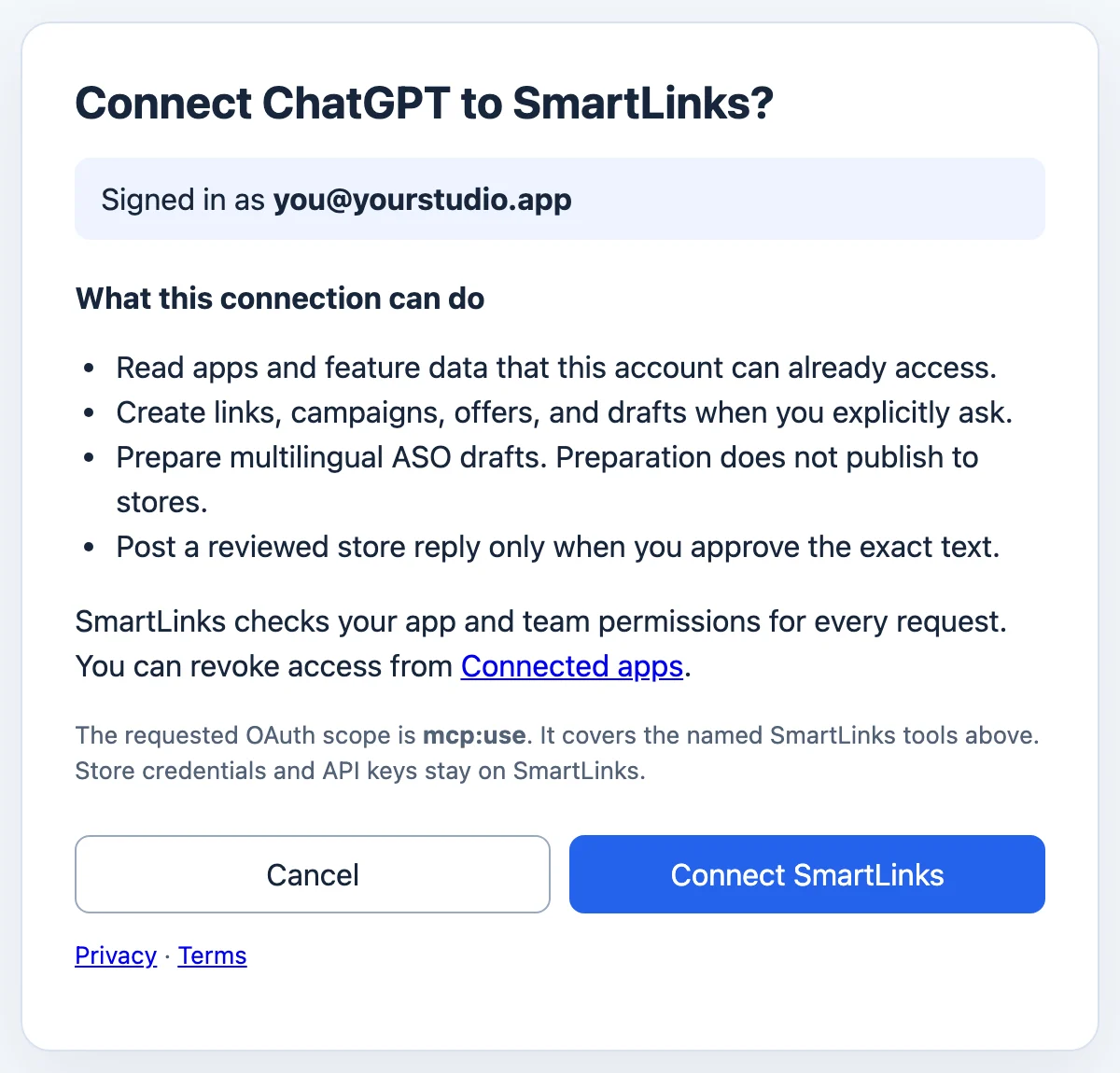
Step by step: connect ChatGPT
- In ChatGPT, open the settings for apps and connectors and add a custom connector. Custom connectors may require developer mode on your plan.
- Enter the MCP server URL
https://smartlinks.live/mcp/smartlinksand choose OAuth authentication. - ChatGPT opens SmartLinks. Sign in if asked, read the consent screen, and choose Connect SmartLinks.
- Start a chat, enable the SmartLinks connector, and ask: “List my SmartLinks apps.”
Step by step: connect Claude Code
-
Add the SmartLinks plugin marketplace and install the plugin:
claude plugin marketplace add AmrSaied/smartlinks-claude-plugin claude plugin install smartlinks-app-growth@smartlinks-marketplace -
Restart Claude Code. The first time a SmartLinks tool is needed, Claude Code asks you to authorize; open the link it shows.
-
Approve the connection on the SmartLinks consent screen. If the browser shows a connection error on the final
localhostpage, copy that full address back into Claude Code. -
Ask: “Summarize this week's growth for my app.”
The plugin also adds a skill that explains all 37 capabilities and the multilingual ASO workflow.
Step by step: connect Claude (web and desktop)
- In Claude, open the connector settings and add a custom connector.
- Enter the MCP server URL
https://smartlinks.live/mcp/smartlinks. - Choose Connect, sign in to SmartLinks if asked, and approve the consent screen.
- In a chat, enable SmartLinks from the tools menu and ask a question about one of your apps.
Step by step: any other MCP client
- Add a remote (Streamable HTTP) MCP server with the URL
https://smartlinks.live/mcp/smartlinks. - Let the client discover sign-in automatically: SmartLinks publishes OAuth metadata, supports PKCE and registers the client for you. The scope is
mcp:use. - Approve the SmartLinks consent screen, then list the tools.
What your assistant can do
- 37 explore tools (
explore_*), one per SmartLinks capability: deep links and shortlinks, analytics, attribution, audience, retention, verified and AdMob revenue, Screenshot Studio, promo videos, ASO and store metadata, competitors, country pricing, crashes, reviews and AI replies, feedback, communities, blog, social, promo codes, AI Gateway, REST and MCP access, teams, setup, data deletion and referrals. These only read data. - 16 action tools that create or change something — links, campaigns, promo codes, screenshot projects, drafts, feedback triage, review replies and ASO preparation.
list_aso_localeslists every Apple and Google Play locale for your app (137 slots, including Arabic and other right-to-left languages).validate_store_listingchecks one listing in its own language for field lengths, writing direction and policy-sensitive claims before it ships.
Some results say partial: SmartLinks shows the current data, and finishing the task needs a dashboard or store-provider step. A long list may come back shortened, with the total count and a hint to narrow it with filters.
Safety: drafts first, you approve
- Every write asks for your confirmation of the exact app and fields before it runs.
- Blog and social posts are saved as drafts. ASO preparation never publishes to a store.
- A store review reply is posted only when you approve the exact text, and provider acceptance is reported separately from public visibility.
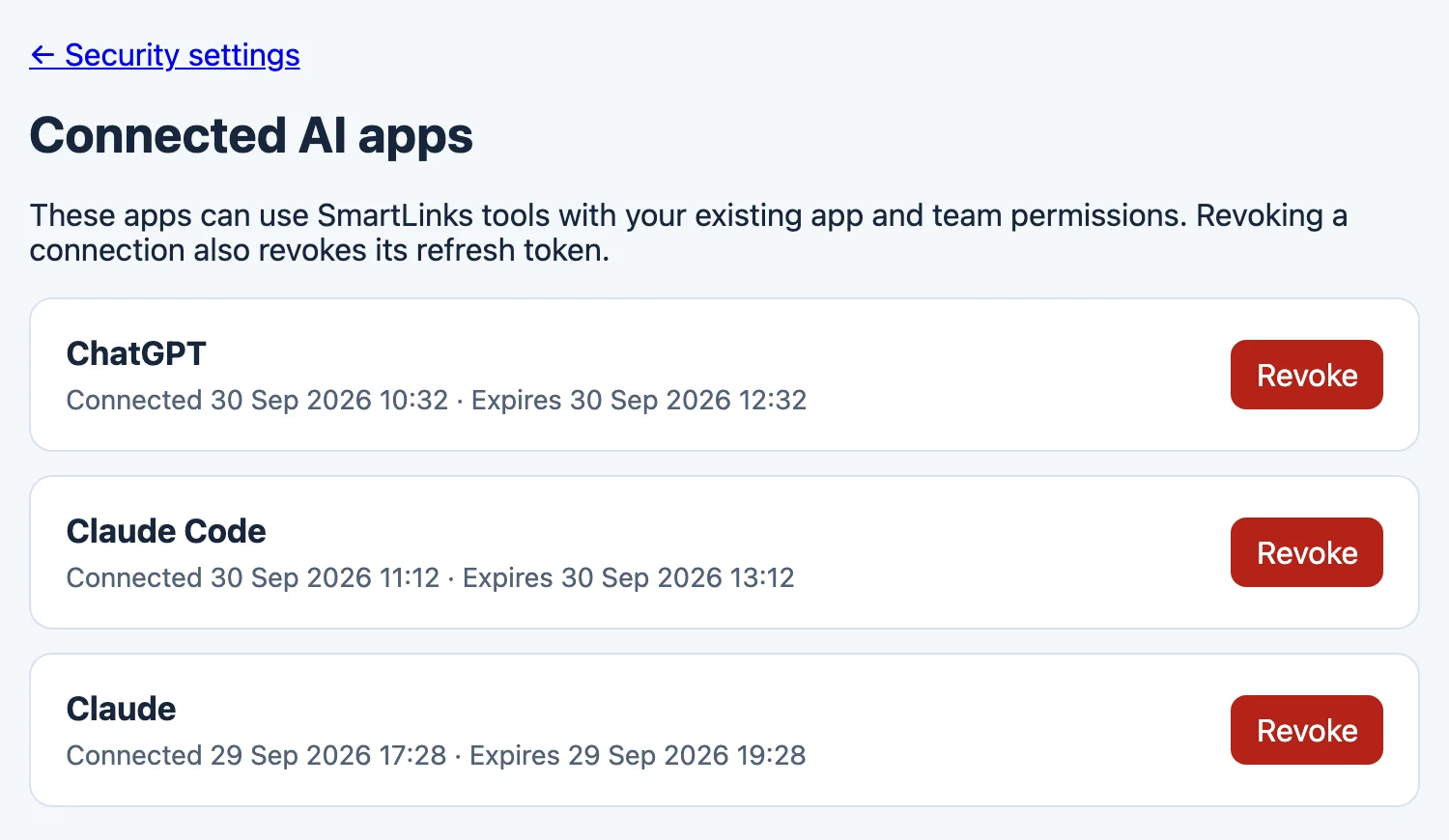
Confirm it worked
Ask your assistant to list your SmartLinks apps. You should see the same apps as in your dashboard, and the assistant appears under Connected AI apps (Security settings → Connected apps) with the time it connected.
Revoke access
- Open Security settings and choose Connected apps, or go to
/connected-appswhile signed in. - Choose Revoke next to the assistant. Its access and refresh tokens stop working immediately.
- Connect again at any time from the assistant; you will see the consent screen again.
Troubleshooting
- The assistant says it is not authorized or asks you to reconnect. Access tokens last two hours and refresh automatically; if a refresh fails or you revoked the connection, reconnect from the assistant's connector settings.
- An app is missing. The assistant sees only apps your SmartLinks account or team can open. Check the app's team and your role in the dashboard.
- A result says partial or guided. Finish that step in the SmartLinks dashboard or the store console, then ask the assistant to check again.
- A write did nothing. Writes need an explicit confirmation of the exact app and fields; review the proposed action and confirm it.
Related: API Explorer, REST and MCP, ASO and localized store listings, Account security.